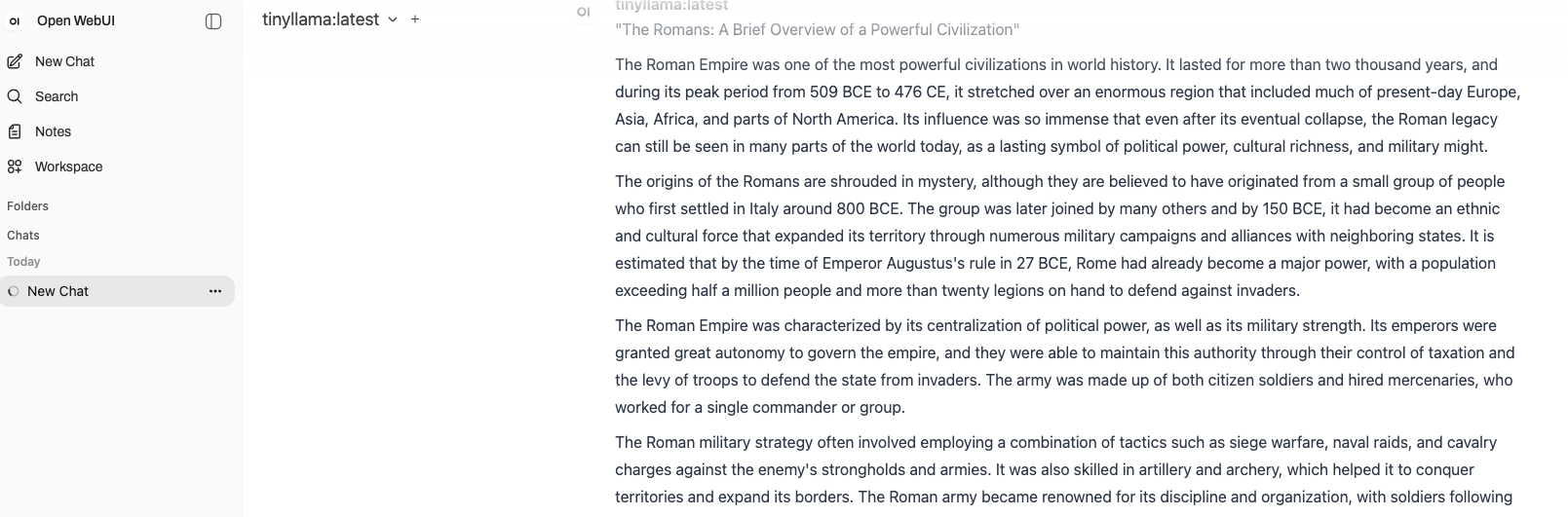
GPU operations on k3s
K3s with GPU Operator (Writing)
Creating a K3s kubernetes cluster on Vultr using 1 master, 2 worker nodes
Installing K3s using the startup
curl -sfL https://get.k3s.io | sh -

## Or without traefik & servivelb
curl -sfL https://get.k3s.io | INSTALL_K3S_EXEC="server --disable traefik --disable servicelb" sh -
To join worker nodes (token can be found under /var/lib/rancher/k3s/server/node-token in the master node)
curl -sfL https://get.k3s.io | K3S_URL=https://myserver:6443 K3S_TOKEN=mynodetoken sh -
After joining
kubectl get no
NAME     STATUS   ROLES           AGE    VERSION
master   Ready    control-plane   17m    v1.35.4+k3s1
minion   Ready    <none>          117s   v1.35.4+k3s1
worker   Ready    <none>          113s   v1.35.4+k3s1
Installing GPU Operator
Add helm repo
helm repo add nvidia https://helm.ngc.nvidia.com/nvidia \
    && helm repo update
Create gpu-operator NS and label it privileged
kubectl create ns gpu-operator
namespace/gpu-operator created

kubectl label --overwrite ns gpu-operator pod-security.kubernetes.io/enforce=privileged
namespace/gpu-operator labeled
Helm install gpu-operator (with servicemonitor deployed for monitoring) *this might help to enable DCP metrics → https://raw.githubusercontent.com/NVIDIA/dcgm-exporter/main/etc/dcp-metrics-included.csv (test required)
helm install gpu-operator -n gpu-operator \
  nvidia/gpu-operator $HELM_OPTIONS \
    --version=v26.3.1 \
    --set toolkit.env[0].name=CONTAINERD_CONFIG \
    --set toolkit.env[0].value=/var/lib/rancher/k3s/agent/etc/containerd/config.toml \
    --set toolkit.env[1].name=CONTAINERD_SOCKET \
    --set toolkit.env[1].value=/run/k3s/containerd/containerd.sock \
    --set dcgmExporter.serviceMonitor.enabled=true \
    --set dcgmExporter.env[0].name=DCGM_EXPORTER_KUBERNETES \.  ## ==> this env needs to be tested (required to see pod level usage metrics)
    --set-string dcgmExporter.env[0].value=true

## For vgpus
helm install gpu-operator -n gpu-operator \
  nvidia/gpu-operator $HELM_OPTIONS \
    --version=v26.3.1 \
    --set toolkit.env[0].name=CONTAINERD_CONFIG \
    --set toolkit.env[0].value=/var/lib/rancher/k3s/agent/etc/containerd/config.toml \
    --set toolkit.env[1].name=CONTAINERD_SOCKET \
    --set toolkit.env[1].value=/run/k3s/containerd/containerd.sock \
    --set dcgmExporter.serviceMonitor.enabled=true \
    --set vgpuManager.enabled=true
Check pods in gpu-operator namespace
kubectl get po -n gpu-operator
NAME                                                          READY   STATUS      RESTARTS   AGE
gpu-feature-discovery-rbp26                                   1/1     Running     0          85s
gpu-feature-discovery-wvcwx                                   1/1     Running     0          85s
gpu-operator-7588c78c66-464tq                                 1/1     Running     0          103s
gpu-operator-node-feature-discovery-gc-585b876f9c-tclxp       1/1     Running     0          103s
gpu-operator-node-feature-discovery-master-7f6684fb45-5klbr   1/1     Running     0          103s
gpu-operator-node-feature-discovery-worker-hk6pt              1/1     Running     0          103s
gpu-operator-node-feature-discovery-worker-kcldz              1/1     Running     0          103s
gpu-operator-node-feature-discovery-worker-nxvh2              1/1     Running     0          104s
nvidia-container-toolkit-daemonset-cmw7p                      1/1     Running     0          90s
nvidia-container-toolkit-daemonset-w52rj                      1/1     Running     0          90s
nvidia-cuda-validator-6znvq                                   0/1     Completed   0          80s
nvidia-cuda-validator-ccsfh                                   0/1     Completed   0          87s
nvidia-dcgm-exporter-hxj4m                                    1/1     Running     0          86s
nvidia-dcgm-exporter-xqxkz                                    1/1     Running     0          86s
nvidia-device-plugin-daemonset-7nxg9                          1/1     Running     0          88s
nvidia-device-plugin-daemonset-ggcxh                          1/1     Running     0          88s
nvidia-operator-validator-ddjpq                               1/1     Running     0          89s
nvidia-operator-validator-xkb5c                               1/1     Running     0          89s
Verify installation using the example Nvidia
Installing kube-prometheus-stack helm (we can add ruleSelector, scrapeConfigSelector, probeSelector, podMonitorSelector to have {} values as well with the below ‘NilUsesHelmValues’ option)
helm repo add prometheus-community https://prometheus-community.github.io/helm-charts
helm repo update
kubectl create namespace monitoring
helm install prometheus prometheus-community/kube-prometheus-stack -n monitoring $HELM_OPTIONS --set prometheus.prometheusSpec.serviceMonitorSelectorNilUsesHelmValues=false
After installation
kubectl get po -n monitoring
NAME                                                     READY   STATUS    RESTARTS   AGE
alertmanager-prometheus-kube-prometheus-alertmanager-0   2/2     Running   0          4h50m
prometheus-grafana-6698c699c-mwvkh                       3/3     Running   0          4h51m
prometheus-kube-prometheus-operator-54869f4f7b-dl25s     1/1     Running   0          4h51m
prometheus-kube-state-metrics-9549ddf4c-6cktg            1/1     Running   0          4h51m
prometheus-prometheus-kube-prometheus-prometheus-0       2/2     Running   0          4h50m
prometheus-prometheus-node-exporter-b2q4q                1/1     Running   0          4h51m
prometheus-prometheus-node-exporter-w8k2x                1/1     Running   0          4h51m
prometheus-prometheus-node-exporter-x22hb                1/1     Running   0          4h51m
We can check by deploying a sample ingress inside to point to prometheus UI as well
apiVersion: networking.k8s.io/v1
kind: Ingress
metadata:
  name: prometheus
  namespace: monitoring
spec:
  ingressClassName: traefik
  rules:
  - http:
      paths:
      - path: /
        pathType: Prefix
        backend:
          service:
            name: prometheus-operated
            port:
              number: 9090
If we use the IP address to see
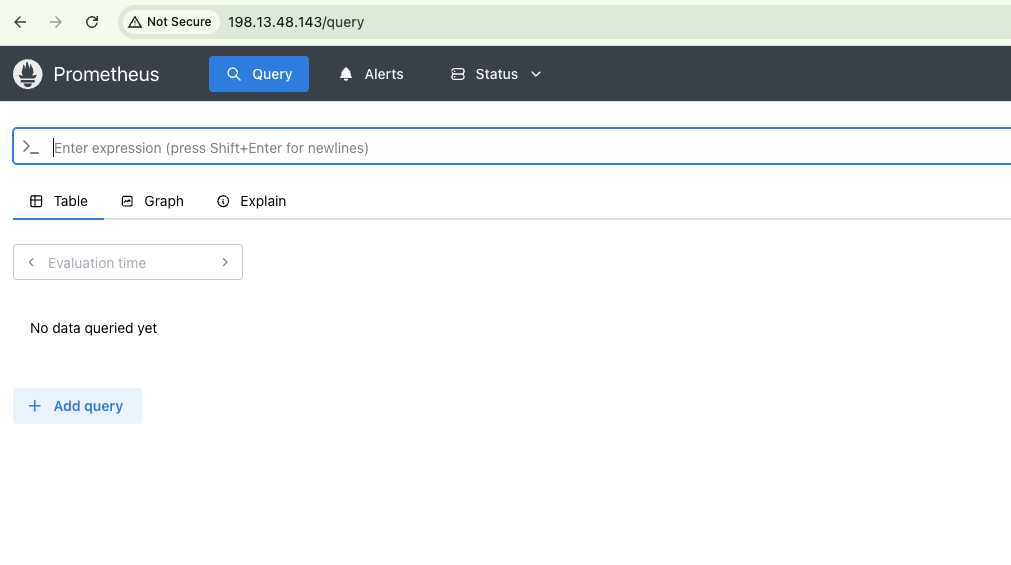
If we check for metrics
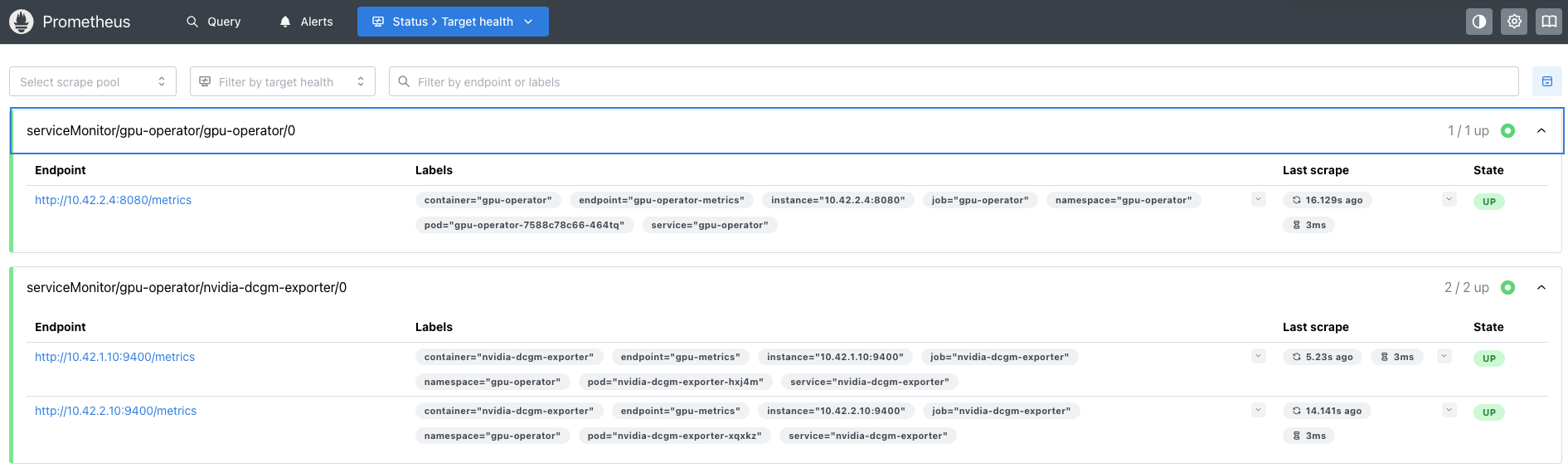
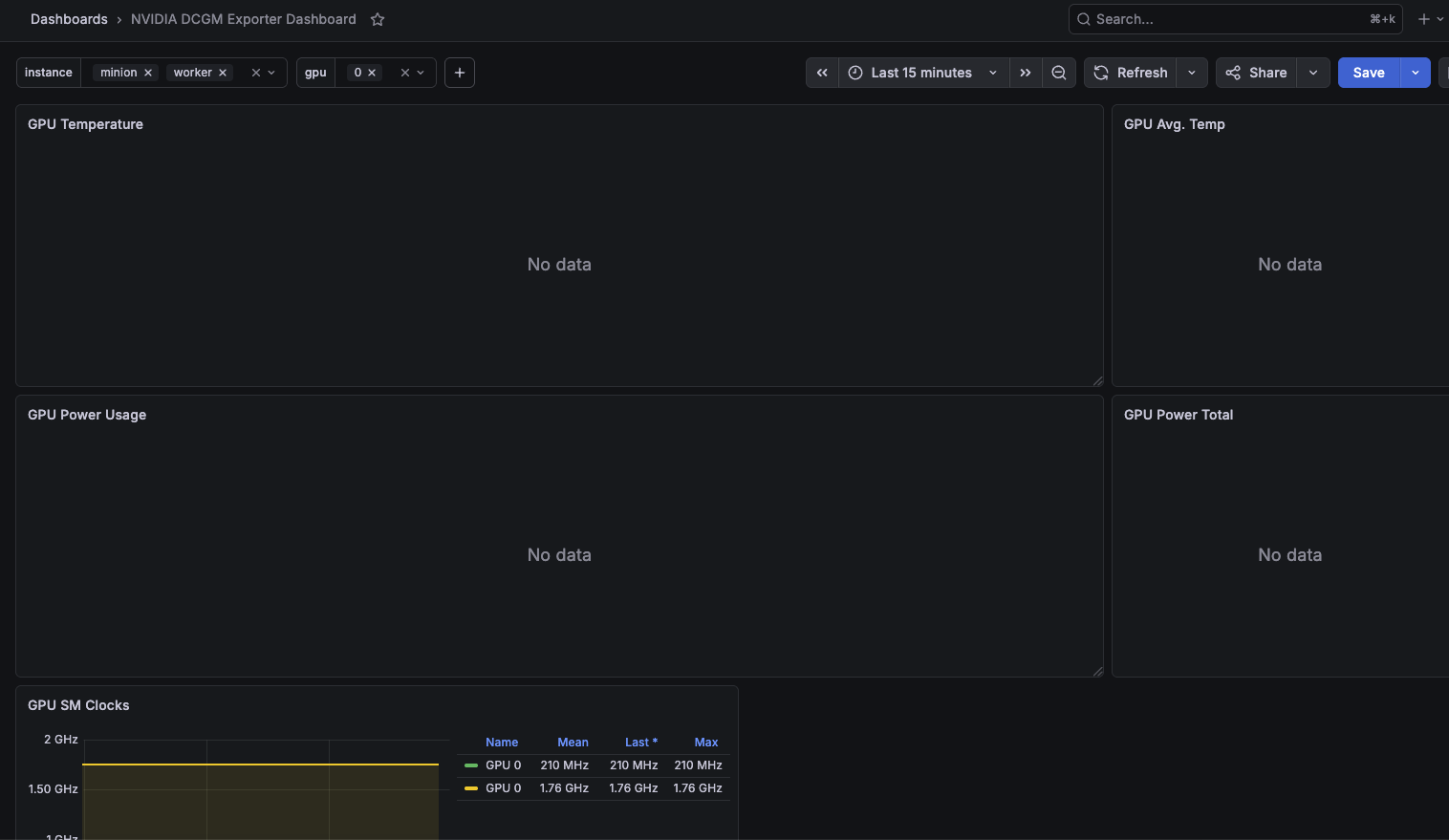
Then in Grafana, *we have to change some variables and datasource names and label values to see them For variables, - Datasource to prometheus with labels values of ‘nodes’ from ‘kube_node_info’ - Datasource to prometheus with labels values of ‘gpu’ from ‘DCGM_FI_DEV_GPU_UTIL’ For each panel edits, - change the ‘instance’ label to ‘Hostname’ to see node names alongwith the Legends too
Time Slicing GPU
Testing time slicing. Apply the following configMap to
apiVersion: v1
kind: ConfigMap
metadata:
  name: time-slicing-config-all
  namespace: gpu-operator
data:
  any: |-
    version: v1
    flags:
      migStrategy: none
    sharing:
      timeSlicing:
        resources:
        - name: nvidia.com/gpu
          replicas: 4
Deploying the above CM and patching the cluster-policy will trigger a restart to nvidia device plugin DaemonSet and gpu feature discovery pods. using ‘describe nodes’, we can see all GPU nodes having ‘Shared’ GPU
                    nvidia.com/gpu.product=NVIDIA-A16-2Q-SHARED
                    nvidia.com/gpu.replicas=4
                    nvidia.com/gpu.sharing-strategy=time-slicing
                    nvidia.com/mig.capable=false
                    nvidia.com/mig.strategy=single
                    nvidia.com/mps.capable=false
                    nvidia.com/vgpu.host-driver-branch=r573_48
                    nvidia.com/vgpu.host-driver-version=570.172.07
                    nvidia.com/vgpu.present=true
                    nvidia.com/gpu-driver-upgrade-enabled: true
  nvidia.com/gpu:     4
  nvidia.com/gpu:     4
Refer here(https://docs.nvidia.com/datacenter/cloud-native/gpu-operator/latest/gpu-sharing.html#configuring-time-slicing-before-installing-the-nvidia-gpu-operator) to apply this setting during installation of GPU operator helm chart
*Just a note that → Time-slicing can become noisy and unpredictable as it is not ‘actually slicing’ a GPU into mini gpus like MIG does.
With time-slicing, multiple pods can share the same physical GPU.
Example:
- Pod A
- Pod B
- Pod C
all use the same GPU simultaneously.
But they are not running truly in parallel in the hardware sense.
Instead, the GPU scheduler rapidly switches between processes:
A → B → C → A → B → Cmany thousands of times per second.
What actually happens is that:
In time-slicing mode:
- Kubernetes is NOT partitioning GPU compute
- NVIDIA is NOT reserving dedicated cores
- There is NO guaranteed fraction of performance
Instead:
- all processes from all pods compete together
- the GPU scheduler shares execution time equally
So even if a pod requests “2 shared GPUs”:
- it still runs on the same shared GPU pool
- it does not get double CUDA cores
- it does not get double VRAM bandwidth
- it does not get guaranteed extra compute time
The request mostly affects:
- scheduling/accounting
- admission control
- how many replicas Kubernetes allows
So if one pod launches many GPU-heavy processes, it can effectively dominate GPU time.
Meanwhile,
With MIG (Multi-Instance GPU):
- GPU memory is partitioned
- SMs (streaming multiprocessors) are partitioned
- hardware isolation exists
- performance guarantees exist
Summary,
Time-slicing is good for:
- development environments
- lightweight inference
- notebooks
- bursty workloads
- increasing GPU utilization
Time-slicing is bad for:
- stable benchmarking
- latency-sensitive inference
- large training jobs
- guaranteed QoS
- noisy multi-tenant environments
Verification
## Before time-slicing
                 Labels:
                    nvidia.com/gpu.count=1
                    nvidia.com/gpu.product=NVIDIA-A16-2Q
                    nvidia.com/gpu.replicas=1
                    nvidia.com/gpu.sharing-strategy=none
                 Capacity:
                    nvidia.com/gpu:     1

kubectl get po
NAME                                        READY   STATUS    RESTARTS   AGE
time-slicing-verification-f779b768f-89lgj   0/1     Pending   0          41s
time-slicing-verification-f779b768f-g9gd4   0/1     Pending   0          41s
time-slicing-verification-f779b768f-j6p2b   0/1     Pending   0          41s
time-slicing-verification-f779b768f-kpwb6   0/1     Pending   0          41s
time-slicing-verification-f779b768f-shzk7   1/1     Running   0          41s

Events:
  Type     Reason            Age   From               Message
  ----     ------            ----  ----               -------
  Warning  FailedScheduling  12s   default-scheduler  0/1 nodes are available: 1 Insufficient nvidia.com/gpu. no new claims to deallocate, preemption: 0/1 nodes are available: 1 No preemption victims found for incoming pod.


## After time slicing
kubectl get po
NAME                                        READY   STATUS    RESTARTS   AGE
time-slicing-verification-f779b768f-89lgj   1/1     Running   0          8m6s
time-slicing-verification-f779b768f-j6p2b   1/1     Running   0          8m6s
time-slicing-verification-f779b768f-kpwb6   1/1     Running   0          8m6s
time-slicing-verification-f779b768f-shzk7   1/1     Running   0          8m6s
Install OpenLdap & OIDC with DEX
Deploy openldap
helm repo add helm-openldap https://jp-gouin.github.io/helm-openldap/
helm install openldap helm-openldap/openldap-stack-ha -n ldap --create-namespace --set global.adminPassword=password --set global.ldapDomain=ldap.com --set global.configUserEnabled=true --set replicaCount=1 --set env.LDAP_ORGANISATION="Example Company
Verify pods
kubectl get po -n ldap
NAME                                     READY   STATUS    RESTARTS      AGE
openldap-0                               1/1     Running   1 (16m ago)   17m
openldap-ltb-passwd-8955c4889-zhhhz      1/1     Running   0             17m
openldap-phpldapadmin-598c5fbd7b-q6f84   1/1     Running   0             17m
We need to change phpadmin page to nodeport to access the UI
kubectl get svc -n ldap
NAME                    TYPE        CLUSTER-IP     EXTERNAL-IP   PORT(S)           AGE
openldap                ClusterIP   10.43.25.82    <none>        389/TCP,636/TCP   18m
openldap-headless       ClusterIP   None           <none>        389/TCP,636/TCP   18m
openldap-ltb-passwd     ClusterIP   10.43.25.107   <none>        80/TCP            18m
openldap-phpldapadmin   NodePort    10.43.29.191   <none>        80:32204/TCP      18m ##==> NodePort change
Before accessing the UI, we have to disable SSL from the phpadmin site by editing the following cm values
kubectl -n ldap get cm openldap-phpldapadmin -o yaml
apiVersion: v1
data:
  PHPLDAPADMIN_HTTPS: "false"
  PHPLDAPADMIN_LDAP_CLIENT_TLS_REQCERT: never
  PHPLDAPADMIN_LDAP_HOSTS: '#PYTHON2BASH:[{ ''openldap.ldap''  : [{''server'': [{''tls'':
    True}. ## ==> change it to 'False'
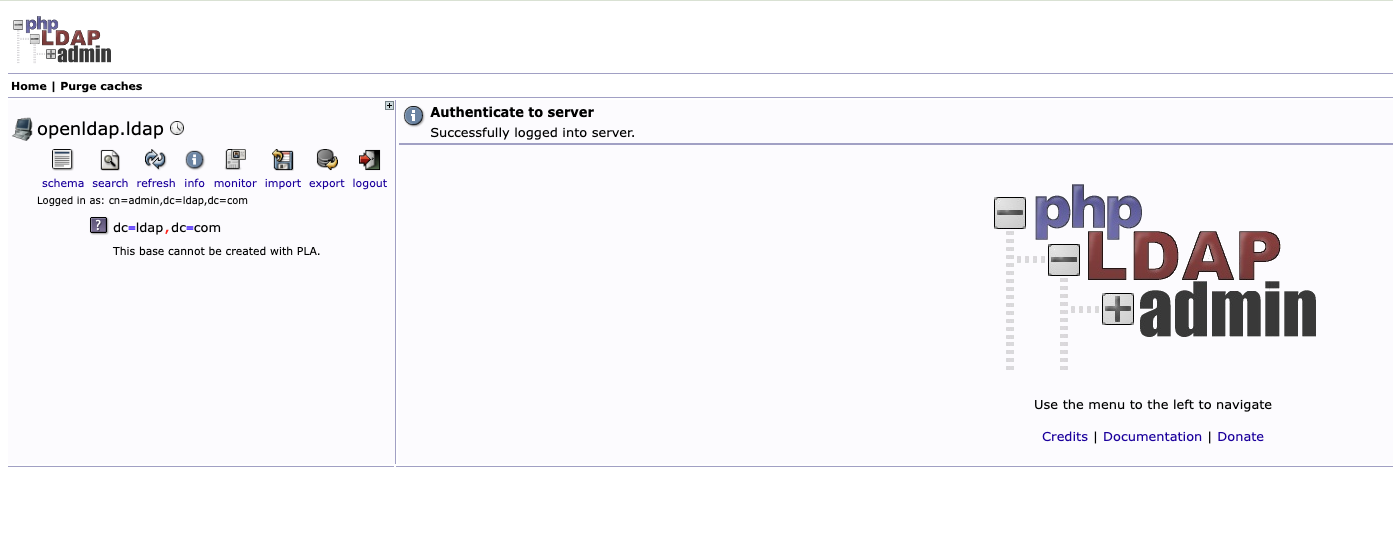
Then restart the phpadmin pod, visit the ui, login to see this screen
We need to prepare the following file inside openldap server
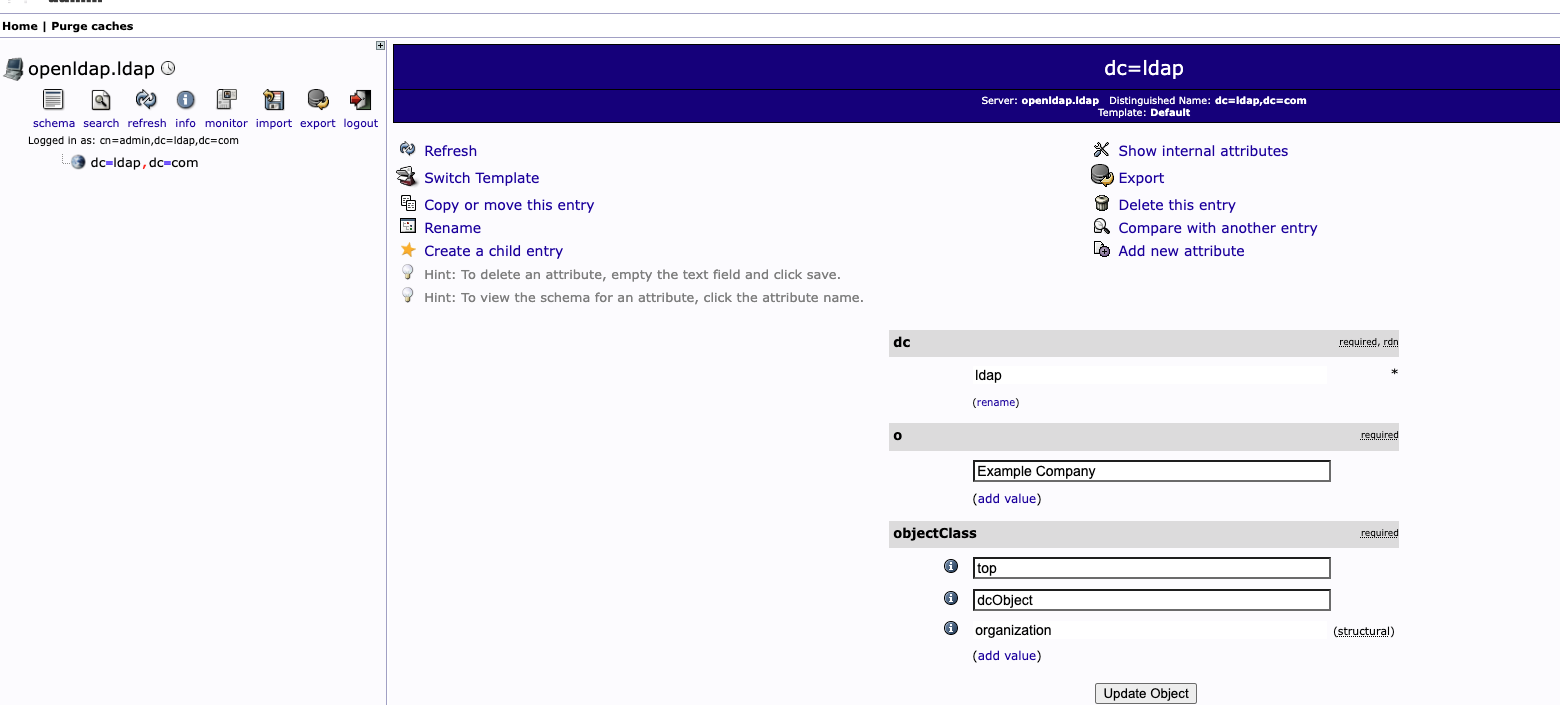
cat base.ldif
dn: dc=ldap,dc=com
objectClass: top
objectClass: dcObject
objectClass: organization
o: Example Company
dc: ldap

## Copy the above file inside the pod
kubectl -n ldap cp base.ldif openldap-0:/tmp/base.ldif
Defaulted container "openldap-stack-ha" out of: openldap-stack-ha, init-schema (init), init-tls-secret (init)

## Verify and add entry
kubectl exec -it -n ldap openldap-0 -- bash
Defaulted container "openldap-stack-ha" out of: openldap-stack-ha, init-schema (init), init-tls-secret (init)

I have no name!@openldap-0:/$ ls /tmp
base.ldif  bitnami

I have no name!@openldap-0:/$ ldapadd -x -H ldap://localhost:1389 -D "cn=admin,dc=ldap,dc=com" -W -f /tmp/base.ldif
Enter LDAP Password:
adding new entry "dc=ldap,dc=com"
Then from UI we can click on the entry we added
Groups settings:
Create a child entry → Generic: Organizational Unit → Users → commit (same for Groups)
Create a child entry → Generic: Posix Group → k8s-admins → commit (same for db-admins & employee)
Users Setting
Create a child entry → Generic: User Account → then enter details (add to employee group)
afterwards we can add this user to k8s-admin group using the UI from k8s-admins group memberUid
Add maiil attribute for user too (dex wont work if no email attr for LDAP user)
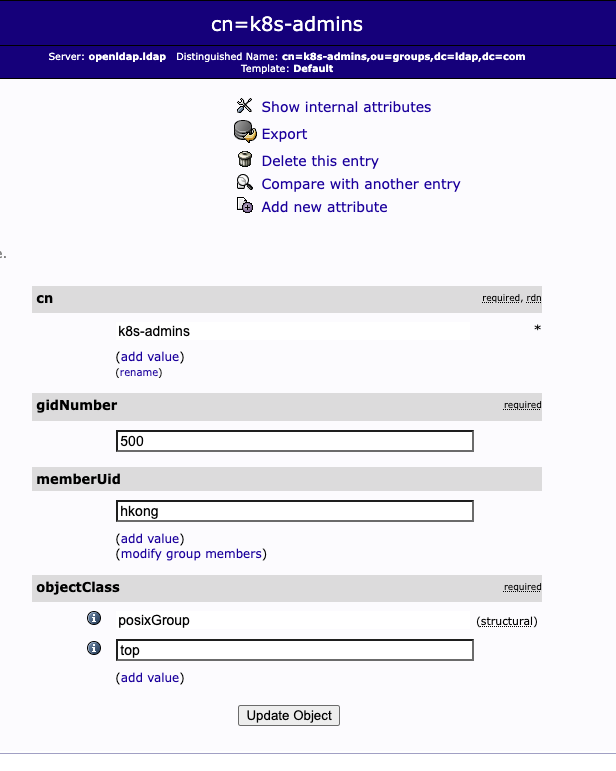
To verify we will deploy a ldap-test pod and use the ldapsearch command inside the pod
kubectl run ldap-test --rm -it --image=osixia/openldap:1.5.0 --restart=Never -- bash

ldapsearch -x -H ldap://openldap.ldap.svc.cluster.local:389 -D "cn=admin,dc=ldap,dc=com" -W -b "cn=k8s-admins,ou=groups,dc=ldap,dc=com"
Enter LDAP Password:
# extended LDIF
#
# LDAPv3
# base <cn=k8s-admins,ou=groups,dc=ldap,dc=com> with scope subtree
# filter: (objectclass=*)
# requesting: ALL
#

# k8s-admins, groups, ldap.com
dn: cn=k8s-admins,ou=groups,dc=ldap,dc=com
gidNumber: 500
objectClass: posixGroup
objectClass: top
cn: k8s-admins
memberUid: hkong

# search result
search: 2
result: 0 Success

# numResponses: 2
# numEntries: 1
Integrating Dex
helm repo add dex https://charts.dexidp.io
helm repo update
Configurating for dex values
# 1. ADD THIS TOP LEVEL BLOCK
https:
  enabled: true

config:
  issuer: https://dex.example.com:31000

  storage:
    type: kubernetes
    config:
      inCluster: true

  web:
    http: 0.0.0.0:5556
    https: 0.0.0.0:5554
    tlsCert: /etc/dex/tls/tls.crt
    tlsKey: /etc/dex/tls/tls.key

  connectors:
  - type: ldap
    id: ldap
    name: LDAP
    config:
      host: openldap.ldap.svc.cluster.local:389
      insecureNoSSL: true
      bindDN: cn=admin,dc=ldap,dc=com
      bindPW: password
      userSearch:
        baseDN: ou=users,dc=ldap,dc=com
        filter: "(objectClass=inetOrgPerson)"
        username: uid
        idAttr: uid
        emailAttr: mail
        nameAttr: cn
      groupSearch:
        baseDN: ou=groups,dc=ldap,dc=com
        filter: "(objectClass=posixGroup)"
        userMatchers:
        - userAttr: uid
          groupAttr: memberUid
        nameAttr: cn
  staticClients:
  - id: kubernetes
    redirectURIs:
    - 'http://localhost:8000/callback'
    name: 'Example App'
    secret: password123
volumes:
- name: dex-tls
  secret:
    secretName: dex-tls-certs
volumeMounts:
- name: dex-tls
  mountPath: /etc/dex/tls
  readOnly: true
Generating TLS certs
root@master:~# openssl genrsa -out ca.key 4096
root@master:~# ls
backup_clusterpolicy.yaml  dcgm-metrics.csv  grafana.yaml   rbac-kube-vip.yaml  verify-time-slicing.yaml
base.ldif                  dex-values.yaml   notebook.yaml  test.yaml
ca.key                     get_helm.sh       pod.yaml       time-slice-cm.yaml
root@master:~# openssl req -x509 -new -nodes -key ca.key -sha256 -days 3650 -out ca.crt -subj "/CN=dex-ca"
root@master:~# ls | grep ca
ca.crt
ca.key
root@master:~# openssl genrsa -out dex.key 2048
root@master:~# openssl req -new -key dex.key -out dex.csr -subj "/CN=dex.example.com"
root@master:~# touch dex.ext
root@master:~# vi dex.ext
root@master:~# openssl x509 -req -in dex.csr -CA ca.crt -CAkey ca.key -CAcreateserial -out dex.crt -days 265 -sha256 -extfile dex.ext
Certificate request self-signature ok
subject=CN = dex.example.com


## inside dex.ext file
subjectAltName = @alt_names

[alt_names]
DNS.1 = dex.example.com
DNS.2 = dex
DNS.3 = dex.dex.svc
DNS.4 = dex.dex.svc.cluster.local
IP.1 = 127.0.0.1


## Create secret for dex tls
kubectl create secret tls dex-tls-certs --cert=dex.crt --key=dex.key -n dex

## install dex using the values file
helm install dex dex/dex -f dex-values.yaml -n dex
NAME: dex
LAST DEPLOYED: Tue May 19 08:34:23 2026
NAMESPACE: dex
STATUS: deployed
REVISION: 1
TEST SUITE: None
NOTES:
1. Get the application URL by running these commands:
  export POD_NAME=$(kubectl get pods --namespace dex -l "app.kubernetes.io/name=dex,app.kubernetes.io/instance=dex" -o jsonpath="{.items[0].metadata.name}")
  export CONTAINER_PORT=$(kubectl get pod --namespace dex $POD_NAME -o jsonpath="{.spec.containers[0].ports[0].containerPort}")
  echo "Visit http://127.0.0.1:8080 to use your application"
  kubectl --namespace dex port-forward $POD_NAME 8080:$CONTAINER_PORT
Verify dex
kubectl get po -n dex
NAME                   READY   STATUS    RESTARTS   AGE
dex-76566f9bbf-2xbcw   1/1     Running   0          41m
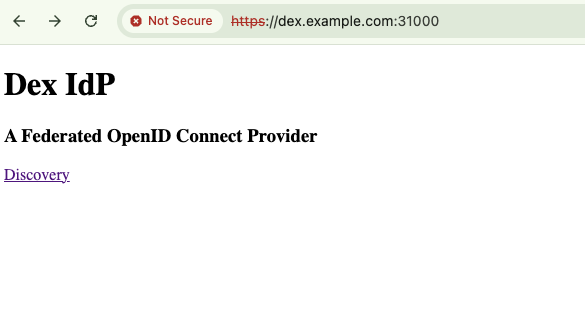
Visit UI using the domain
kubelogin and Active Directory
For kubelogin, we need to install oidc-login tool via krew
So install krew using the docs and then continue
kubectl krew install oidc-login
Updated the local copy of plugin index.
Installing plugin: oidc-login
Installed plugin: oidc-login
\
 | Use this plugin:
 | 	kubectl oidc-login
 | Documentation:
 | 	https://github.com/int128/kubelogin
 | Caveats:
 | \
 |  | You need to setup the OIDC provider, Kubernetes API server, role binding and kubeconfig.
 | /
/
WARNING: You installed plugin "oidc-login" from the krew-index plugin repository.
   These plugins are not audited for security by the Krew maintainers.
   Run them at your own risk.


## create new kubeconfig 'oidc'
kubectl config set-credentials oidc --exec-api-version=client.authentication.k8s.io/v1beta1 --exec-command=kubectl --exec-arg=oidc-login --exec-arg=get-token --exec-arg=--oidc-issuer-url=https://dex.example.com:31000 --exec-arg=--oidc-client-id=kubernetes --exec-arg=--oidc-client-secret=password123 --exec-arg=--oidc-redirect-url=http://localhost:8000/callback --exec-arg=--insecure-skip-tls-verify --exec-arg=--oidc-extra-scope=groups

## set config
root@master:~# kubectl config set-context dex-context --cluster=default --user=oidc
Context "dex-context" created.
root@master:~# kubectl config use-context dex-context
Switched to context "dex-context"
To include oidc config into kube-apiserver args
## Create the config file
cat /etc/rancher/k3s/config.yaml
kube-apiserver-arg:
  - oidc-issuer-url=https://dex.example.com:31000
  - oidc-client-id=kubernetes
  - oidc-username-claim=email
  - oidc-groups-claim=groups
  - oidc-ca-file=/etc/dex/tls/dex.crt
Restart the k3s service and then we can use the new context from any other server with ‘oidc-login’ plugin available to use kubectl
Once we use kubectl, we will be redirected to the browser wid dex page and we can login as our user. After login we will be able to see
k get po
Error from server (Forbidden): pods is forbidden: User "https://dex.example.com:31000#CgVoa29uZxIEbGRhcA" cannot list resource "pods" in API group "" in the namespace "default"
We can bind a clusterrole or the role of our choice to the Group i will be using group to cluster-admin
apiVersion: rbac.authorization.k8s.io/v1
kind: ClusterRoleBinding
metadata:
  name: oidc-admin-binding
subjects:
- kind: Group
  name: "k8s-admins"
  apiGroup: rbac.authorization.k8s.io
roleRef:
  kind: ClusterRole
  name: cluster-admin
  apiGroup: rbac.authorization.k8s.io
After applying this binding we can use kubectl after dex authentication from the client PC
*When we copy kubeconfig, we need to make sure that the default context is deleted first
## The client pc as dex user ##
➜  ~ k get po
NAME             READY   STATUS      RESTARTS   AGE
cuda-vectoradd   0/1     Completed   0          6d7h
tf-notebook      1/1     Running     0          4d9h

➜  ~ k config get-contexts
CURRENT   NAME          CLUSTER   AUTHINFO   NAMESPACE
*         dex-context   default   oidc
*handy command to verify what the token info has included
kubectl oidc-login get-token --oidc-issuer-url=https://dex.example.com:31000 --oidc-client-id=kubernetes --oidc-client-secret=password123 --oidc-redirect-url=http://localhost:8000/callback --insecure-skip-tls-verify
We can get the token and extract info
echo "eyJhbGciOiJSUzI1NiIsImtpZCI6ImEyN2E0ZjRlNTFlZjU5YTgyOWE5NDMyMzJiNDcwZmE3NjI4ZDA2NzYifQ.eyJpc3MiOiJodHRwczovL2RleC5leGFtcGxlLmNvbTozMTAwMCIsInN1YiI6IkNnVm1iR2x3Y3hJRWJHUmhjQSIsImF1ZCI6Imt1YmVybmV0ZXMiLCJleHAiOjE3NzkyOTU5MzAsImlhdCI6MTc3OTIwOTUzMCwibm9uY2UiOiJJLUF5eDVnYlpDRGFEMFFLSWl6ZGhPSU9BbUR2Q19rZ2NJTjdoUnBId0IwIiwiYXRfaGFzaCI6IkFSSVF0SGRuUjZrOEM1Q2Y2X185SmciLCJjX2hhc2giOiJ6eVA1N3BKMHRMV2VCcGhFWmZHYl9BIn0.CRJHy02l_9aAcNLbzSfck8CroiODpExNPWCH4zkOSpS6Me_oZB4-s55CnijtCy_LB9lFUCyiKMifN2a6P68L74xbxlLKF3YJVJnH0drD2_j3NSBiv8W_DNLGDoTAjbTWrYXng_uGvK6L5PH-lOt1y0EPlXMNaQlS8FktEwCpkhFZd73G8477wZvVi23ZtsZhQTmU-2NTlCWwrv3JpcITdhVEyP0CV_fwquQwjt9YH7svRkY2A14oRZO4ccq5qouTbTYMiUWi7kkfbzuTPJNRc1XMTBdWJNYy91mzpu9Ge2Guht2xLE3ueVBUqgfEKt0nOwBdfYt776-b03jr77zYtA" | cut -d '.' -f2 | base64 -d | jq
base64: invalid input
{
  "iss": "https://dex.example.com:31000",
  "sub": "CgVmbGlwcxIEbGRhcA",
  "aud": "kubernetes",
  "exp": 1779295930,
  "iat": 1779209530,
  "nonce": "I-Ayx5gbZCDaD0QKIizdhOIOAmDvC_kgcIN7hRpHwB0",
  "at_hash": "ARIQtHdnR6k8C5Cf6__9Jg",
  "c_hash": "zyP57pJ0tLWeBphEZfGb_A"
}
*We can also bind individual users
apiVersion: rbac.authorization.k8s.io/v1
kind: ClusterRoleBinding
metadata:
  name: oidc-admin-user-binding
subjects:
- kind: User
  name: "flips@example.com"
  apiGroup: rbac.authorization.k8s.io
roleRef:
  kind: ClusterRole
  name: cluster-admin
  apiGroup: rbac.authorization.k8s.io
Deploying Ollama & Open Web UI
Install Ollama
helm repo add ollama-helm https://otwld.github.io/ollama-helm/
helm repo update

## Values
cat ollama-values.yaml
ollama:
  gpu:
    enabled: true
    type: 'nvidia'

resources:
  limits:
    nvidia.com/gpu: 1


## Install ollama
helm install ollama ollama-helm/ollama -f ollama-values.yaml -n ollama --create-namespace

## Or
helm install ollama ollama-helm/ollama -n ollama --create-namespace --set ollama.gpu.enabled=true --set persistentVolume.enabled=true

## Verify Installation
kubectl get po -n ollama
NAME                      READY   STATUS    RESTARTS   AGE
ollama-7c874c7845-fnkcp   1/1     Running   0          86s
Install open web ui
helm repo add open-webui https://helm.openwebui.com/
helm repo update

## Install
helm install open-webui open-webui/open-webui   --namespace open-webui   --create-namespace --set ollama.baseUrl=http://ollama.ollama.svc.cluster.local:11434

## It will take some time for the pods to be ready
kubectl get po -n open-webui
NAME                                    READY   STATUS    RESTARTS   AGE
open-webui-0                            1/1     Running   0          4m1s
open-webui-ollama-6c5c85965f-rdj2t      1/1     Running   0          4m1s
open-webui-pipelines-7cb8ccc8b8-vn9v8   1/1     Running   0          4m1s
open-webui-redis-54bb4d7755-v67mh       1/1     Running   0          4m1s
We can visit open webui and then pull a model from settings then chat with our private LLM